![Vidigami_Wordmark_K.svg]](https://help.vidigami.com/hubfs/Vidigami_Wordmark_K.svg)
Jump to Section:
1. Defining Page Access
Each Page in Vidigami has its own access settings. Managing Page access can be edited by going to the Manage Access Levels  icon. This is found on either the individual page or in the area called Manage Site.

Below is a look at each area in Edit Access and how it helps you manage your Page.
2. Who has access to this Page
Here you decide who on your Vidigami platform can view a Page. There are three choices.
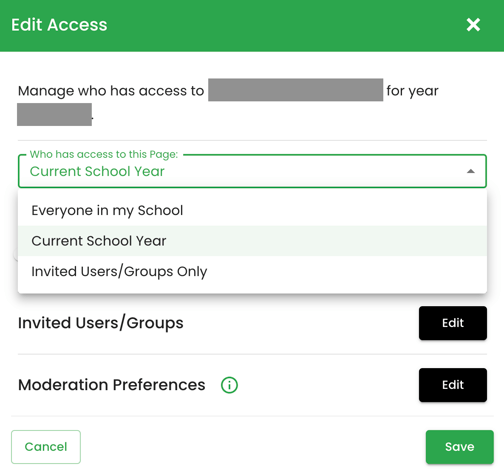
Options for Access:
| 1. Everyone in your school |
| Every activated user in all years of your Vidigami community. |
| 2. Current School Year |
| Users who are part of your current school year. |
| 3. Invited Users/Groups Only |
| Allows only selected users or groups to have access to the page. |
3. Override Role
Use override access to let a user View or Contribute, regardless of their role (custom or default.)
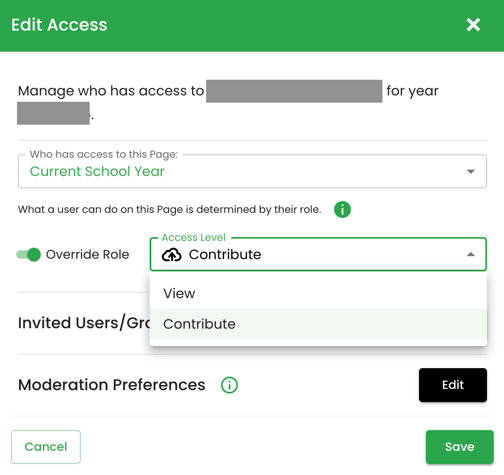
Options for Overriding:
| 1. Contribute |
| Lets a user add content to this Page, even if their role doesn’t normally allow it. |
| 2. View |
| Lets a user see this Page only, even if their role usually allows contributing. |
Important Note:
Admin, Site Manager, and users with Manage Content selected in their Role can always access & upload to all Pages no matter the settings.
4. Invited Users/Groups
Invited Users/Groups area allows you to grant special permissions to a user or a group.

Options for Users/Groups:
| 1. View |
| The invited User/Group only have the ability to view the page. |
| 2. Moderate Uploads |
| The invited User/Group can upload but their uploads are moderated. |
| 3. Contribute |
| The invited User/Group can upload. |
| 4. Review |
| The invited User/Group can review moderated uploads |
| 5. Edit |
| The invited User/Group can edit the Page and mangeaccess levels. |
5. Moderate Preferences
Moderate Preferrences area lets the admin decide which user groups’ uploads require moderation. Content from those users must be approved by a designated Reviewer before it appears.

| 1. Users with View access level |
| All users with View access level can upload with moderation. |
| 2. Users without Page access |
| Allows moderated uploads by activated users via Media Request Link (MRL) without giving view access to the Page. |